
View a Group Class
To view the details and configuration properties of a Group Class:
-
Select Members from the top navigation bar, then select Groups > Group Classes from the side navigation menu. The Group Classes screen is displayed.
-
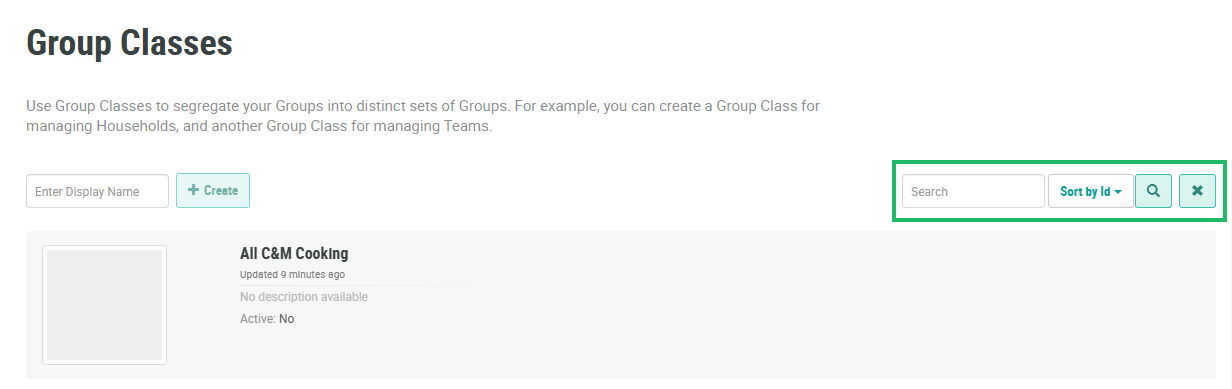
The search feature on the Group Classes screen allows you to search for a specified text string anywhere within the Display Name and Internal Name. Optionally, in the Search field, enter the desired text string. Click the Search icon. The screen is refreshed to show only the Group Classes that meet your search criteria.
-
To sort the search results, select the desired sort order from the Sort By drop-down menu. The default sort order is by: Group Class ID.
-
Select the desired Group Class. The Group Class Details screen is displayed with the Groups tab selected.
-
The header and the tabs on this screen allow you to view various configuration details. See below for details on each of these areas.
Header
The header area of the Group Class Details screen displays the high-level properties of this Group Class, such as its name, description, and Active flag.
From the header area, you can edit the properties of the Group Class. See Edit Group Class Properties for more information.
Also from the header area, you can delete a Group Class. See Delete a Group Class for more information.
Groups Tab
The Groups tab of the Group Class Details screen displays a list of all the Groups assigned to this Group Class. The platform displays information about each Group, such as its name, description, and any Group Categories to which it has been assigned. Click a Group's name to view the Group Details screen.
From this tab, you can import a file of Groups that you want to assign to this Group Class. This method allows you to import only new Groups, which will be created in the platform, and added to this Group Class. You can't use the import method to assign existing Groups to this Group Class. See Import Groups into a Group Class for more information.
Note: If you want to add an existing Group to this Group Class, you must edit the properties of that Group, and select the desired Group Class. Likewise, if you want to remove a Group from this Group Class, you must edit the properties of that Group, and remove the Group Class assignment. See Edit Group Properties for more information.
